Update FiveM Artifacts
Learn how to update your FiveM artifacts to benefit from the latest features and bug fixes. This guide explains how to change your artifacts version on Pterodactyl in 3 simple steps, from the cfx.re website to restarting your server.
1. Stop your server
Before any operation, stop your server properly from the panel.
If the server does not stop normally, use the Kill button to force shutdown.
2. Choose the new version of artifacts
Go to the official artifacts site:
https://runtime.fivem.net/artifacts/fivem/build_proot_linux/master/
You will see a list of the latest artifact versions.
3. Copy/paste the desired artifact version into your panel
Now copy the version you selected and paste it in the "FiveM Version" field in the "Startup" section from your panel ElypseCloud.
Make sure to copy only the version number, for example: 21703
4. Delete the alpine folder
Delete the alpine folder from the server. Note that this action will not delete your data, it only aims to regenerate your alpine folder.
The alpine folder contains the files of the current artifacts. It will be regenerated automatically with the new version during reinstallation.
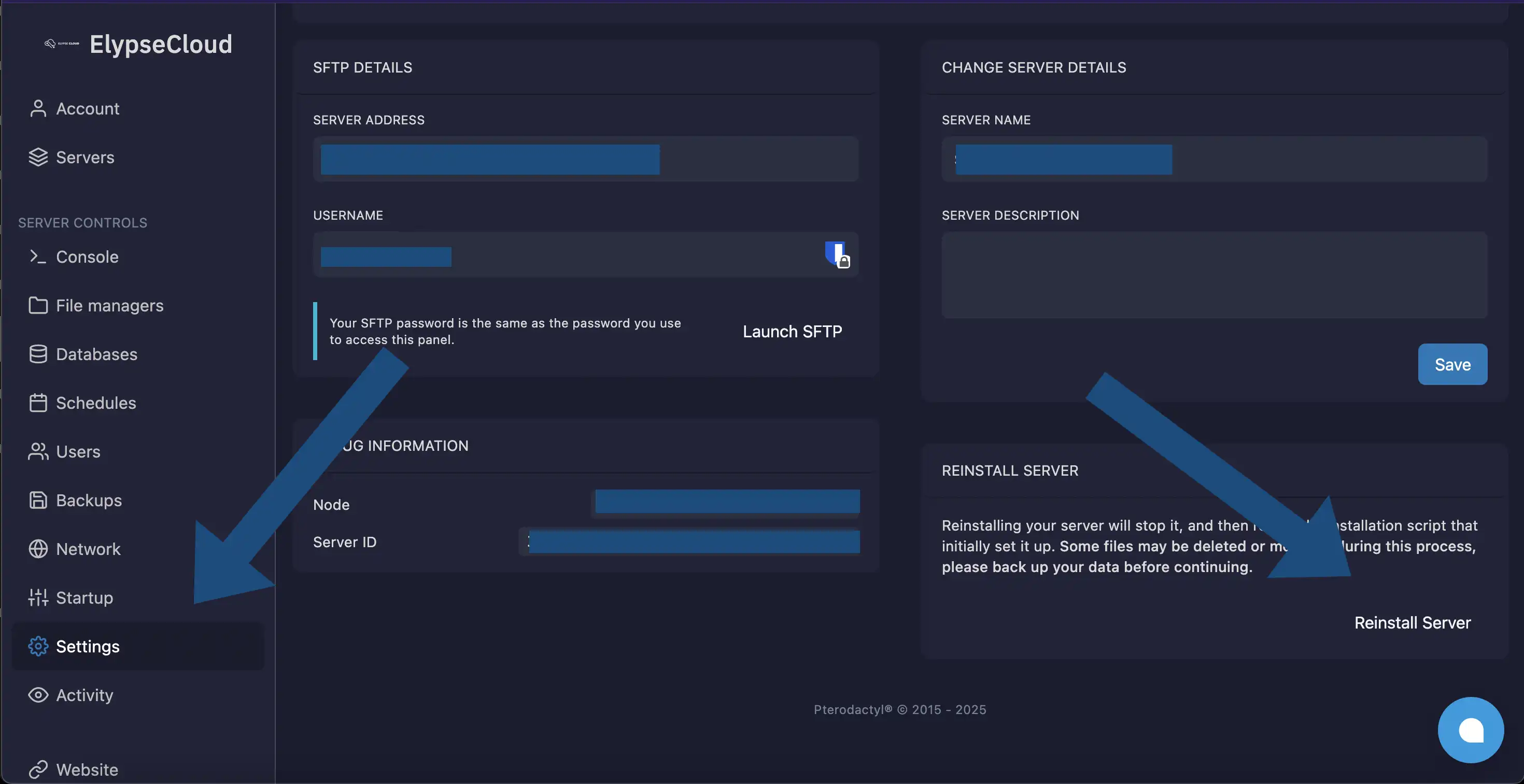
5. Reinstall the server
This action automatically downloads the version of artifacts defined in the "FiveM Version" field of the Startup section, thus regenerating the alpine folder and the server.cfg.
No files will be deleted, only the alpine folder.
6. Restart the server
Once the reinstallation is complete, restart your server.
You are now using the new version of FiveM artifacts!
🎉 Congratulations
Your FiveM artifacts have been successfully updated.
If you encounter any issues, open a ticket on our Discord.